The following describes the GCD operation sequence selection.
Open the Operation Sequence Selection window
- Double-click a GCD or highlight a GCD, right-click and select Edit.
- Use the Shift and Ctrl keys to highlight multiple GCDs of the same type.
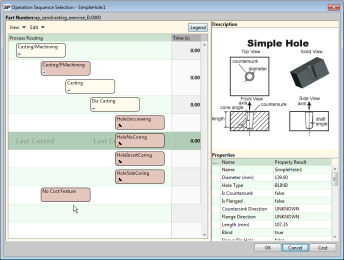

Note: The Operation Sequence Selection window opens only if editing operation sequence is allowed for the selected GCD.
Assign the No Cost Feature operation to a GCD
The No Cost Feature operation enables you to specify that a GCD should not contribute to a part's cost. For more information, see No Cost Feature.
-
Assign this operation to a GCD in the Operation Sequence Selection window by selecting the No Cost Feature operation block
-
Click OK.
When set, this override is displayed in the Geometric Cost Drivers pane. After successful costing, the Selected field also reflects "No Cost Feature".

In general, applying "No Cost Feature" to a GCD with children applies to the children. There are some exceptions such as Edge, CurvedSurface, CurvedWall, and PlanarFace.
If you apply No Cost Feature to a child GCD, the parent's Selected field notes <child_gcd>/No Cost Feature after successful costing.